 Abdul Basit
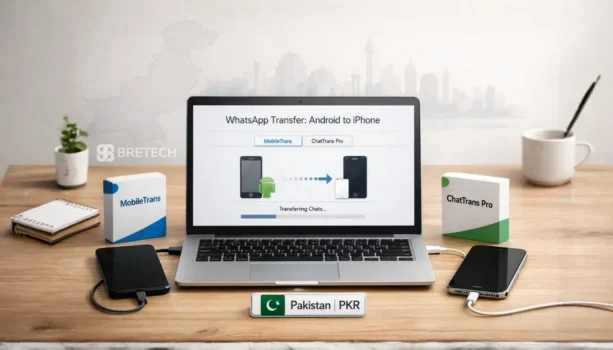
Moving WhatsApp from Android to iPhone can be simple if the official transfer method fits your situation. If your iPhone is new or ready to erase, Apple’s Move to iOS method is usually the best free starting point.
If the iPhone is already set up, Move to iOS fails, or you need more control over chats, media, backup, restore, or WhatsApp Business, a dedicated WhatsApp transfer tool may be more suitable.
The main paid options are Dr.Fone WhatsApp Transfer, EaseUS ChatTrans Pro, and Wondershare MobileTrans. Dr.Fone and ChatTrans are more focused on WhatsApp transfer, while MobileTrans is a broader phone migration tool that also handles WhatsApp.
Best WhatsApp Transfer Options at a Glance
The right choice depends on whether you need a free one-time migration, a dedicated WhatsApp tool, a complete phone transfer, or a commercial license for repeated customer devices.
| Your Need | Best Starting Option |
|---|---|
| New iPhone during setup | Move to iOS |
| Free Android-to-iPhone WhatsApp transfer | Move to iOS |
| Dedicated WhatsApp transfer | Dr.Fone WhatsApp Transfer or ChatTrans Pro |
| WhatsApp Business transfer | Dr.Fone, ChatTrans Pro, or MobileTrans |
| WhatsApp backup and restore | Dr.Fone, ChatTrans Pro, or MobileTrans |
| iPhone already configured | Consider a supported paid transfer workflow |
| Full Android-to-iPhone phone migration | MobileTrans |
| Commercial work on many customer phones | Business or technician license required |
If you need to compare other migration products, browse BreTech’s data transfer software in Pakistan.
Do You Need Paid WhatsApp Transfer Software?
You do not always need paid software. Start by checking whether the official method can complete your transfer without creating another problem.
Use Move to iOS If
Move to iOS is usually enough when:
- your iPhone is new or ready to erase
- you are moving from Android to iPhone
- you can complete the transfer during iPhone setup
- you want a free method
- you do not need extra WhatsApp backup or restore tools
Apple currently includes WhatsApp messages and media among the content that can move from Android during iPhone setup.
For a normal personal phone change, there is no reason to buy transfer software before checking whether the official method meets your needs.
Consider a Paid WhatsApp Transfer Tool If
Paid software becomes more useful when:
- Move to iOS fails
- your iPhone is already configured
- you do not want to depend on the setup-based transfer process
- you need WhatsApp backup and restore
- you need WhatsApp Business support
- you want a computer-based transfer process
- you are also moving other phone data
- you work on many different customer phones
Check device and license compatibility before buying. A tool may technically support WhatsApp transfer but still have a personal-use device limit that makes it unsuitable for a repair shop or technician.
Before You Transfer WhatsApp
Many failed migrations are caused by storage, cables, permissions, power settings, or incomplete preparation rather than the transfer software itself.
Before starting:
- Update WhatsApp on both phones.
- Make sure both devices have enough battery.
- Check the available storage on the destination iPhone.
- Use a reliable cable for computer-based transfers.
- Disable aggressive battery saver or cleaner apps during the transfer.
- Keep both phones connected and unlocked when required.
- Avoid changing between several transfer methods halfway through the process.
If your iPhone already contains important files, photos, or business data, create a backup before experimenting with migration tools. See the best iPhone data backup software in Pakistan if you need a separate backup solution.
Best Paid WhatsApp Transfer Tools for Android to iPhone
Dr.Fone WhatsApp Transfer, EaseUS ChatTrans Pro, and MobileTrans all support WhatsApp-related workflows, but they are designed for slightly different buyers.
Dr.Fone WhatsApp Transfer: Dedicated WhatsApp Transfer
Dr.Fone WhatsApp Transfer is a dedicated module for transferring, backing up, and restoring WhatsApp data between supported Android and iOS devices.
It supports common WhatsApp content such as messages and attachments, and Wondershare also lists support for WhatsApp Business transfer between Android and iOS.
Dr.Fone makes sense when your main job is:
- WhatsApp Android to iPhone transfer
- WhatsApp iPhone to Android transfer
- WhatsApp Business migration
- WhatsApp backup and restore
- moving chats and attachments between phones
- commercial WhatsApp transfer with the correct business license
BreTech’s Dr.Fone license options in Pakistan include guidance for individual, business, and technician requirements. Mobile shops should not assume that a normal personal Dr.Fone license permits unlimited work on customer devices.
For a user who mainly needs WhatsApp rather than a complete phone-management suite, Dr.Fone WhatsApp Transfer is a more focused choice than a general phone-transfer program.
EaseUS ChatTrans Pro: WhatsApp-Focused EaseUS Option
EaseUS ChatTrans Pro is designed specifically around chat transfer, backup, and restore.
EaseUS currently lists direct WhatsApp transfer for:
- Android to iPhone
- iPhone to Android
- Android to Android
- iPhone to iPhone
It can move messages and supported attachments such as photos, videos, audio, documents, stickers, and links. It also provides computer-based WhatsApp backup and restore workflows.
EaseUS ChatTrans Pro is suitable when your main requirement is WhatsApp or supported chat data rather than a full phone migration.
It may fit users who need:
- WhatsApp chats and media transfer
- cross-platform Android and iPhone transfer
- WhatsApp backup to a computer
- WhatsApp restore
- supported WhatsApp Business workflows
- a focused chat-transfer application
One important limitation is licensing. EaseUS publicly documents the transfer features, but buyers should not assume that a normal ChatTrans Pro license allows unlimited different customer phones or commercial technician work unless the license terms specifically confirm it.
Wondershare MobileTrans: WhatsApp Plus Full Phone Migration
Wondershare MobileTrans is broader than a dedicated WhatsApp transfer utility.
It supports WhatsApp transfer between Android and iPhone, but it also handles other phone migration, backup, restore, import, and export tasks depending on the selected plan.
MobileTrans is better suited when you need:
- WhatsApp transfer
- WhatsApp Business transfer
- Android-to-iPhone phone migration
- iPhone-to-Android migration
- general phone data transfer
- phone backup and restore
- one program for several migration tasks
The main difference is scope. Choose MobileTrans when WhatsApp is only one part of the phone move.
This also makes MobileTrans useful for technicians who perform different types of transfer work rather than WhatsApp-only jobs, provided they use the correct commercial license.
Dr.Fone vs ChatTrans Pro vs MobileTrans
All three paid tools can help with WhatsApp, but they should not be treated as identical products.
| Feature or Need | Dr.Fone WhatsApp Transfer | EaseUS ChatTrans Pro | MobileTrans |
|---|---|---|---|
| Android → iPhone WhatsApp | Yes | Yes | Yes |
| iPhone → Android WhatsApp | Yes | Yes | Yes |
| WhatsApp chats and media | Yes | Yes | Yes |
| Backup and restore | Yes | Yes | Yes |
| WhatsApp Business | Supported | Supported workflows | Supported |
| Dedicated WhatsApp focus | Strong | Strong | Part of broader suite |
| General phone migration | Available through broader Dr.Fone tools | Not main purpose | Strong |
| Commercial unlimited-device option | Available through business licensing | Confirm with EaseUS | Available through business licensing |
| Best fit | WhatsApp-focused users and business licensing | WhatsApp-focused personal use | WhatsApp plus complete phone migration |
The main buyer decision is simple. Choose Dr.Fone WhatsApp Transfer for a dedicated Wondershare WhatsApp solution, ChatTrans Pro for a focused EaseUS chat-transfer tool, or MobileTrans when you also need broader phone migration.
A future dedicated comparison can examine Dr.Fone WhatsApp Transfer and ChatTrans Pro more deeply without turning this general buyer guide into an oversized product comparison.
Can You Transfer WhatsApp Without Resetting the iPhone?
The answer depends on the transfer method.
Apple’s normal Move to iOS process is part of initial iPhone setup. If iPhone setup is already complete, Apple says you need to erase the iPhone and start over to use that process again.
That can be inconvenient if you have already:
- installed apps
- added photos or documents
- configured email
- changed settings
- started using the new phone
Some third-party tools provide computer-based WhatsApp migration workflows that do not depend on restarting the standard iPhone setup process.
MobileTrans, for example, currently promotes Android-to-iPhone WhatsApp transfer without requiring a factory reset for its supported workflow.
This does not mean every phone and software combination will work the same way. Confirm current compatibility before relying on a no-reset transfer.
How to Transfer WhatsApp for Free With Move to iOS
For a new or reset iPhone, Apple’s method remains the sensible free starting point.
The general process is:
- Turn on the new or erased iPhone.
- Continue through the setup screens.
- Choose the option to transfer data from Android.
- Open Move to iOS on the Android phone when required.
- Connect the two devices using the instructions shown.
- Select the content you want to transfer.
- Allow the transfer to complete before using either phone.
- Finish setting up the iPhone.
- Open WhatsApp and complete the required migration steps.
Apple says WhatsApp messages and media are among the data types that can be transferred through its Android migration process.
If the official transfer works, you may not need paid WhatsApp transfer software.
Can You Transfer WhatsApp Business from Android to iPhone?
Yes, supported third-party tools can handle WhatsApp Business migration between Android and iPhone.
Dr.Fone currently supports WhatsApp Business cross-platform transfer. MobileTrans also provides Android ↔ iPhone WhatsApp Business transfer workflows, while EaseUS lists WhatsApp Business support for ChatTrans.
Business users should be more careful than normal personal users because their chats may contain:
- customer conversations
- order details
- documents
- media
- business contacts
- sales discussions
- important records
Before starting, check your phone models, Android and iOS versions, WhatsApp Business version, transfer direction, and software license.
Create a separate backup wherever possible before moving important business chats.
Can You Restore a Google Drive WhatsApp Backup on iPhone?
A Google Drive WhatsApp backup from Android cannot simply be treated like a normal iPhone WhatsApp backup.
Android normally uses Google Drive for cloud WhatsApp backup, while iPhone uses Apple’s environment. Moving WhatsApp across platforms therefore requires a supported migration or transfer workflow.
For a normal Android-to-iPhone phone change, try the official migration process first when it fits your setup.
If your main problem is an existing backup rather than a normal phone-to-phone migration, read how to recover WhatsApp backup from Google Drive.
WhatsApp Transfer for Mobile Shops and Technicians
A mobile shop has a different licensing requirement from a customer moving WhatsApp between one or two personal phones.
If you transfer WhatsApp for different customers every day, do not buy a normal personal license and assume it covers unlimited devices.
For example, normal MobileTrans individual licenses are currently limited to a small number of mobile devices on one computer. Wondershare separately offers MobileTrans Business licensing that can be configured for more devices, including an unlimited-mobile-device option on one PC.
Dr.Fone also currently offers business WhatsApp Transfer licenses with different device quantities, including an unlimited-device option on one PC.
Before buying software for a mobile shop, confirm:
- how many customer phones you expect to service
- how many PCs will run the software
- Windows or Mac
- Android ↔ iPhone support
- WhatsApp Business support
- personal vs commercial-use rights
- license duration
- device limits
A technician handling several phones every day should normally choose a business, technician, or commercial license, not a standard home-user plan.
If you need help confirming a commercial license before ordering, contact BreTech with the number of phones and computers you expect to use.
Common WhatsApp Transfer Problems
Transfer failures do not always mean you need another program. Check the basic setup before buying or switching tools.
Transfer Gets Stuck
A transfer may stop because of:
- insufficient storage
- low battery
- unstable connection
- cable problems
- battery-saving settings
- cleaner apps
- device permission issues
Keep both phones connected and avoid using unrelated apps during the transfer.
If you have already tried several times, do not keep changing tools randomly. Identify the likely problem before starting another migration.
Chats Are Missing After Transfer
First check that you are using the correct WhatsApp account and phone number on the destination device.
Avoid mixing several backup, restore, and migration methods because this can make it difficult to identify which copy of the data is being used.
If the chats appear to have been deleted rather than simply missed during migration, use the free WhatsApp Recovery Checker for Pakistan before buying recovery software.
Photos or Videos Are Missing
WhatsApp media may require much more space than chat text.
Check the available iPhone storage and give large collections enough time to complete the transfer or restore.
If photos, videos, or other WhatsApp data were actually deleted before the migration, see the best WhatsApp data recovery software in Pakistan instead of repeatedly running a transfer tool.
WhatsApp Business Transfer Fails
Make sure the selected software supports:
- WhatsApp Business
- your source phone
- your destination phone
- the transfer direction
- your operating-system versions
Normal WhatsApp support should not automatically be treated as proof that every WhatsApp Business workflow is supported.
What to Avoid During WhatsApp Transfer
WhatsApp may contain personal messages, customer information, photos, videos, documents, and other private data.
Avoid:
- cracked transfer software
- modified WhatsApp applications
- unknown tools requesting unnecessary account access
- switching between several transfer methods halfway
- deleting the source-phone data too early
- starting without enough destination storage
- buying before checking compatibility
- using a personal license for commercial shop work when it is not permitted
Keep the original data until you have confirmed that the important chats and media are available on the destination phone.
Which WhatsApp Transfer Tool Should You Choose?
For a new or reset iPhone, start with Move to iOS. It is free and can transfer WhatsApp messages and media as part of the Android-to-iPhone setup process.
Choose Dr.Fone WhatsApp Transfer when WhatsApp or WhatsApp Business is your main transfer job and you want a dedicated cross-platform solution.
Choose EaseUS ChatTrans Pro when you want an EaseUS tool focused mainly on WhatsApp transfer, backup, and restore.
Choose Wondershare MobileTrans when WhatsApp is part of a wider phone migration and you also need to transfer or manage other phone data.
For a mobile shop or technician, choose based on commercial license rights and device limits, not only the software features. If you regularly work on customer phones, confirm a business or unlimited-device license before paying.