 Abdul Basit
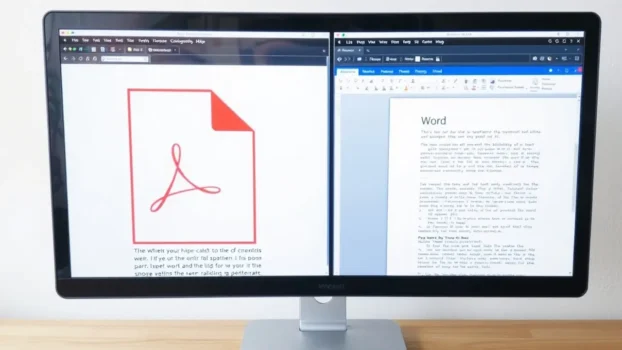
To convert PDF to Word without losing formatting, use a trusted converter that can handle fonts, tables, images, columns, and scanned text. Simple PDFs usually convert well, but complex layouts may still need small corrections in Word.
This is important for contracts, forms, invoices, reports, assignments, and office documents in Pakistan. A poor conversion may shift text, break tables, replace fonts, or leave scanned pages as non-editable images.
Online tools may be suitable for simple, non-sensitive files. For private documents, scanned pages, or regular business work, licensed PDF software gives users more control over conversion quality, OCR, editing, and document security.
Key Takeaways
- Use a desktop PDF editor for complex, private, or scanned documents.
- Use OCR when the PDF contains scanned pages instead of selectable text.
- Expect some manual corrections when the original PDF uses complex tables or columns.
- Review fonts, spacing, images, tables, and page breaks after conversion.
- Use online converters only for simple, non-sensitive files.
Understanding PDF and Word File Conversion

PDF and Word files are designed for different purposes. A PDF normally uses a fixed layout so that the document looks similar across computers, phones, printers, and operating systems.
A Word document is designed for editing. Its text, images, tables, and page layout can move when content is changed or when the file is opened with different fonts or page settings.
This difference makes PDF-to-Word conversion difficult, especially when the original document contains scanned pages, columns, forms, graphics, or complicated tables.
What Makes PDF and Word Different?
PDFs are mainly used for sharing final documents while keeping the page appearance stable. They can contain text, embedded fonts, images, forms, links, and fixed page elements.
Word files use a flexible layout that allows users to edit paragraphs, change fonts, move images, resize tables, and update page settings. When a fixed PDF is changed into an editable Word file, the converter must rebuild that layout.
A good converter can keep the result close to the original, but perfect conversion is not guaranteed for every document.
Common Challenges in PDF-to-Word Conversion
Simple text-based PDFs normally convert more accurately than scanned or highly designed files. Problems are more likely when the document includes multiple columns, unusual fonts, background images, text boxes, handwritten content, or large tables.
Scanned PDFs need OCR before the text can become editable. The result depends on the quality of the scan, the language used, page alignment, image clarity, and document complexity.
After conversion, always check headings, fonts, tables, images, page numbers, and page breaks before using or sharing the Word file.
Why Maintaining Formatting Matters
Formatting helps readers understand the structure and purpose of a document. Clear headings, tables, spacing, and page breaks make reports, contracts, forms, and academic documents easier to read.
Poor conversion can change meaning or make important information difficult to find. A broken table may place information in the wrong row, while a shifted page break may separate a heading from its content.
Keeping the layout close to the original also reduces the time required for manual corrections.
Methods to Convert PDF to Word Without Losing Formatting

The right conversion method depends on the document’s layout, privacy level, scan quality, and how often you need to convert PDF files.
Using PDF Editing Tools
PDF editing software is normally more suitable for complex or important documents. Tools such as EaseUS PDF Editor, Ashampoo PDF Pro, Foxit PDF Editor, Wondershare PDFelement, PDF-XChange Editor, SwifDoo PDF, and PDFChef by Movavi provide different conversion and editing options.
If PDF-XChange is one of your options, read the PDF-XChange Editor vs Editor Plus vs PRO comparison to see which edition fits your PDF conversion, editing, and document workflow.
Professional PDF editors may include:
- OCR for scanned documents
- Conversion of PDF files into Word and other formats
- Batch processing for several files
- Editing tools for correcting the converted content
- Security controls for private documents
To compare desktop editors, cloud tools, OCR products, and business document solutions, explore BreTech’s PDF software guide and product hub.
You can also view licensed PDF and electronic signature software in Pakistan with PKR pricing, local payment options, digital delivery, activation guidance, and invoice support.
Online Conversion Services
Online PDF-to-Word converters can be convenient when you need to process a simple file without installing software. They normally work inside a web browser and may be suitable for basic documents with standard text and layouts.
However, their accuracy and privacy controls can vary. Before uploading a file, consider:
- Whether the document contains private information
- File-size or page limits
- Formatting quality
- OCR support for scanned pages
- Storage and deletion policies
Avoid uploading contracts, financial records, customer information, employee files, or other confidential documents to an unfamiliar website.
Users who prefer a licensed browser-based option can explore Wondershare PDFelement Cloud for supported online PDF editing and document workflows without installing desktop software.
Free Online Converter vs Licensed PDF Editor
Free online converters may be enough for simple, non-sensitive files. A licensed desktop PDF editor is normally more suitable when formatting, privacy, OCR, or regular document processing matters.
Desktop Applications for Reliable Conversion
Desktop applications process documents on the computer and normally provide more control over export settings. They may also include OCR, editing, security, compression, and batch-processing features.
Foxit PDF Editor is available in different editions for individual users and organizations. Read the Foxit PDF Editor Edition Differences to compare the available options before choosing a license.
The right product depends on the document type, operating system, required features, number of users, and whether the files contain private business information.
| Tool | Best For | Useful Features |
|---|---|---|
| EaseUS PDF Editor | OCR and PDF-to-Word conversion | OCR, conversion, editing, and batch tools |
| Ashampoo PDF Pro | PDF editing and Word export | Text editing, OCR, conversion, and page management |
| Wondershare PDFelement | Forms, OCR, and document conversion | Editing, forms, OCR, and PDF-to-Word export |
| PDF-XChange Editor | Windows-based PDF editing | Editing, annotations, OCR, and export options |
| Foxit PDF Editor | Business PDF workflows | Conversion, editing, OCR, collaboration, and security |
| Adobe Acrobat Pro | Professional PDF workflows | PDF-to-Word export, OCR, forms, signing, and protection |
Comparing a one-time Windows PDF editor with Adobe Acrobat Pro? See Ashampoo PDF Pro vs Adobe Acrobat Pro before choosing.
If you are unsure which PDF editor fits your files, users, or licensing needs, contact BreTech for guidance before ordering.
How to Convert PDF to Word Without Losing Formatting
The exact steps may differ between PDF editors, but the basic process is similar. The example below uses EaseUS PDF Editor as a direct desktop conversion method.
Step-by-Step Guide Using EaseUS PDF Editor
- Launch EaseUS PDF Editor after installation.
- Open the PDF file you want to convert.
- Go to the conversion section.
- Select Microsoft Word or DOCX as the output format.
- Choose the required pages and output folder.
- Enable OCR if the PDF contains scanned pages.
- Start the conversion.
- Open the Word file and review the formatting.
For scanned PDFs, OCR can recognize text before export and make it editable in Word. Conversion accuracy can vary depending on the scan quality, page alignment, language, fonts, and document complexity.
A clean text-based PDF will normally produce a better result than a low-quality scan. Even with good software, tables, columns, and unusual page designs may need small manual corrections.
Best Practices to Preserve Formatting
Start with the clearest PDF available. A file created directly from Word or another digital program will normally convert better than a photograph or low-resolution scan.
Before converting, choose the correct OCR language and check whether the software offers layout or image-retention settings.
After conversion:
- Compare the Word file with the original PDF.
- Check fonts, headings, tables, images, and spacing.
- Review headers, footers, and page numbers.
- Look for missing text or incorrect OCR words.
- Save a separate copy before making major edits.
If the layout is badly damaged, try another export setting or a different PDF editor before rebuilding the document manually.
Conclusion
Converting PDF files to Word without losing formatting is important when contracts, invoices, forms, reports, and assignments need to remain clear and editable.
Simple text-based PDFs normally convert more accurately than scanned or complex documents. OCR can make scanned text editable, but the final result still depends on scan quality, fonts, columns, tables, and page design.
Online converters may be suitable for basic, non-sensitive files. For private documents, regular office work, scanned pages, or complex layouts, licensed desktop PDF software normally provides more control.
Always compare the converted Word file with the original PDF and correct any formatting or OCR errors before sharing it.
FAQs
Q: How can I convert a PDF to Word without losing formatting?
A: Use a trusted PDF editor with Word export and OCR support. After conversion, compare the Word file with the original PDF and correct any small layout changes.
Q: What are the best tools for PDF-to-Word conversion?
A: Adobe Acrobat Pro, Foxit PDF Editor, EaseUS PDF Editor, Ashampoo PDF Pro, Wondershare PDFelement, and other professional PDF editors provide conversion tools. The best option depends on your document type and required features.
Q: Why does formatting change when converting PDF to Word?
A: A PDF uses a fixed layout, while Word uses an editable layout. The converter must rebuild fonts, tables, images, columns, and page elements in Word.
Q: Are online PDF-to-Word converters reliable?
A: Online converters can work for simple files, but results may vary with complex layouts or scanned pages. Avoid uploading confidential files to unfamiliar services.
Q: What should I do if the converted Word document has misaligned text?
A: Check the export settings and convert the file again. You can also try a different PDF editor or correct the affected paragraphs, tables, and page breaks in Word.
Q: How does OCR help with PDF-to-Word conversion?
A: OCR, or Optical Character Recognition, recognizes text inside scanned pages or images. It turns the recognized content into editable text, but errors may occur in poor-quality scans.
Q: Can every PDF be converted perfectly into Word?
A: No. Simple digital PDFs often convert well, but complex tables, columns, custom fonts, forms, and scanned pages may require manual corrections.
Q: Is a desktop PDF editor safer for business documents?
A: A desktop editor can process files locally and provide more control over privacy, OCR, export settings, and document security. Check the product’s settings and license terms before use.
Further Reading
Continue with these related PDF guides:
- Best PDF Editor Software in Pakistan
- Best PDF Editors for Mac in Pakistan
- Best Adobe Acrobat Alternatives in Pakistan
- How to Convert Word to PDF Without Losing Formatting
Explore more PDF conversion, editing, OCR, formatting, and document workflow advice in our PDF & E-Sign guides.