 Abdul Basit
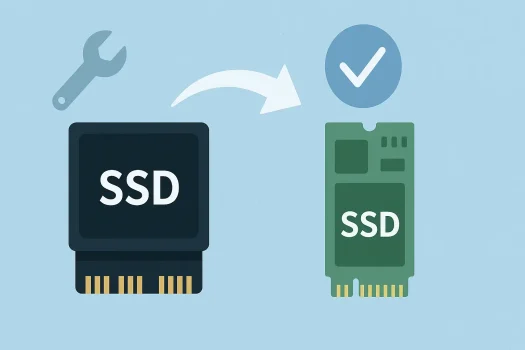
Ready to upgrade to a blazing-fast NVMe SSD? Or looking to secure your critical data? Cloning your NVMe drive is the smartest way to transfer everything, including your operating system, apps, files, and settings, without reinstalling Windows or starting from scratch.
Whether you are a seasoned tech user, an IT professional, or simply upgrading for better performance, this guide will show you an effective way to clone an NVMe SSD and make the switch seamless.
If you are unsure whether you need full disk cloning or only want to move selected apps and files, read EaseUS Todo PCTrans vs Disk Copy to compare both migration methods.
Before Cloning Your NVMe SSD
Before starting the cloning process, check that your system meets the requirements and prepare the necessary tools. Here is what you will need:
A New NVMe SSD
Make sure the new drive has enough capacity to hold all the data from your current SSD. At minimum, it should have enough space for all the data currently in use.
An M.2 Slot or NVMe Enclosure or Adapter
If your system has only one M.2 slot, you will need an NVMe-to-USB enclosure or a PCIe adapter to connect the second drive externally.
A Small Screwdriver
M.2 SSDs normally require a small screw to secure them to the motherboard. Check whether your system or SSD includes the correct screw.
Reliable NVMe Cloning Software
To simplify the process, use trusted disk cloning software. AOMEI Cloner stands out for its ease of use, speed, and compatibility with NVMe SSDs.
Reasons to consider AOMEI Cloner for NVMe SSD cloning include:
- User-Friendly Interface: A clean dashboard and step-by-step guidance make the cloning process easier for beginners.
- Comprehensive NVMe SSD Support: It supports modern NVMe standards, including PCIe 3.0 and 4.0, and common SSD brands such as Samsung, WD, Crucial, and Intel.
- Versatile Cloning Modes: Disk Clone creates a copy of the full drive, System Clone moves the operating system and required boot partitions, and Partition Clone copies a selected partition.
- Advanced Cloning Features: You can resize partitions when moving to a larger or smaller SSD. You can also enable 4K alignment for SSD use.
If you are also comparing cloning, backup, disk management, deployment, and file-system tools, read our guide on Which Paragon Software Do You Need? before choosing software for your SSD or IT workflow.
How to Safely Clone Your NVMe SSD in Windows
Cloning your NVMe SSD using specialized disk clone software, such as AOMEI Cloner, is simple. Follow the steps below to migrate your data and operating system.
Step 1: Connect the New NVMe SSD
- Dual M.2 Slots: If your motherboard supports two M.2 slots, install the new NVMe SSD in the available slot.
- Single M.2 Slot: Use an NVMe-to-USB enclosure or a PCIe adapter to connect the new drive externally.
Step 2: Launch AOMEI Cloner
- Download and install AOMEI Cloner from the official website.
- Open the application.
- Select Clone from the sidebar.
- Choose Disk Clone.
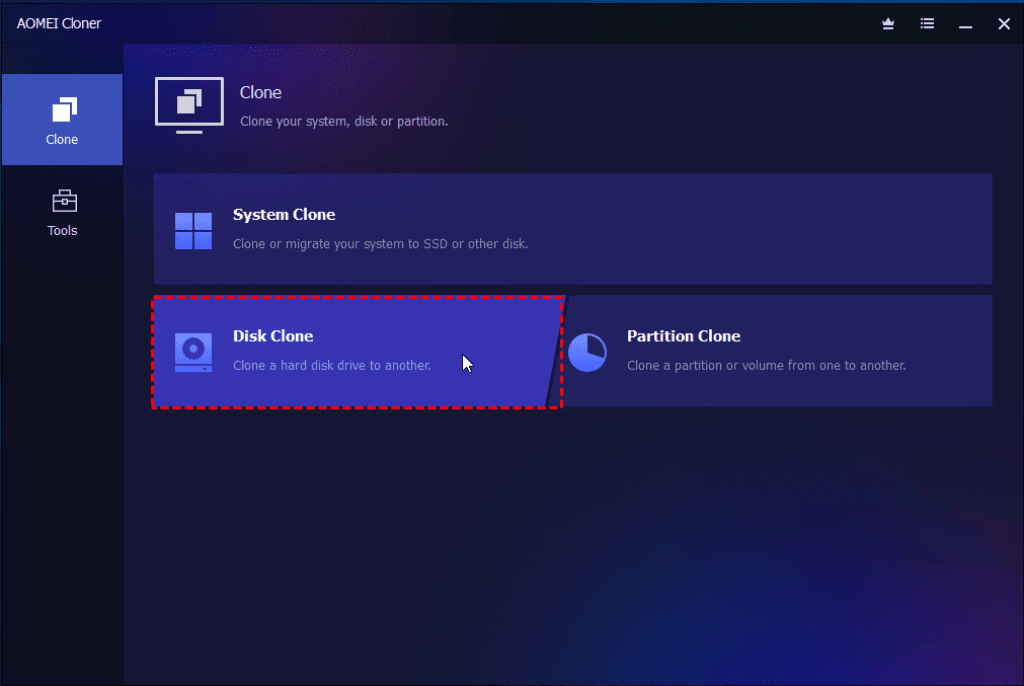
Step 3: Select the Source and Destination Drives
- Source Disk: Choose your current NVMe SSD, which may be shown as Disk 0.
- Destination Disk: Select the new NVMe SSD.
Double-check both drives before continuing to avoid accidental data loss.
Step 4: Configure the Cloning Options
- Edit Partitions: Resize partitions to use the available disk space or convert between MBR and GPT formats.
- SSD Alignment: Turn on 4K alignment during cloning to optimize the destination SSD.
- Sector-by-Sector Clone: Select this option when you need an exact sector-level copy, including unused sectors. This option may disable partition editing and take longer.
Step 5: Start the Cloning Process
- Click Start Clone to begin.
- Avoid disconnecting either drive or interrupting the computer during the process.
Step 6: Replace the Drive and Boot
- Shut down your computer after the cloning process finishes.
- If you are replacing the old SSD, remove it and install the new NVMe SSD in the original M.2 slot.
- Open the BIOS or UEFI settings.
- Go to the boot options and set the new SSD as the first boot device.
- Save the changes and exit the BIOS or UEFI.
- Start Windows from the new SSD.
Check that Windows, your applications, and important files work correctly before erasing or reusing the original drive.
Conclusion
Cloning your NVMe SSD is an efficient way to upgrade or replace your drive without reinstalling Windows or manually transferring your files. With the right tools and a suitable cloning solution, you can move your operating system, applications, files, and settings to the new drive.
AOMEI Cloner provides NVMe support and several cloning options, making it suitable for beginners and experienced users who need to complete an SSD upgrade.
Further Reading and Helpful Guides
- AOMEI Backupper Editions Compared in Pakistan
- AOMEI Partition Assistant vs EaseUS Partition Master
- Disk Health Checker Tools in Pakistan
Explore more recovery tips, tool comparisons, and guides in our Data Recovery knowledge hub.
Explore System Migration Tools
Ready to start your upgrade? Discover solutions for disk cloning and migration in our System Migration & Deployment category.
This guest post was provided by AOMEI and lightly edited by BreTech for formatting and internal links.