 Abdul Basit
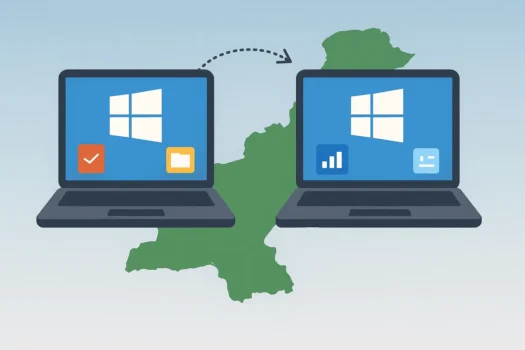
EaseUS Todo PCTrans and EaseUS Disk Copy can both help with Windows migration, but they are made for different jobs. Todo PCTrans moves selected apps, files, settings, and user accounts between computers. Disk Copy clones a full disk, partition, or Windows system to another drive.
Todo PCTrans is usually the better choice when moving to a new computer. Choose Disk Copy when replacing an HDD or SSD and you want to move Windows, apps, settings, and files together.
This guide compares both tools for home users, businesses, IT teams, and technicians looking for suitable EaseUS software in Pakistan. Todo PCTrans moves apps and data, but it does not move Windows. Disk Copy can clone a drive and move Windows to another HDD or SSD.
Key Takeaways
- Choose EaseUS Todo PCTrans to move selected applications, files, accounts, and settings to another Windows PC.
- Choose EaseUS Disk Copy to clone an HDD, SSD, partition, or Windows installation to another drive.
- Todo PCTrans does not replace disk-cloning or system-imaging software.
- Disk Copy does not provide normal selective application transfer between different computers.
- Professional editions are generally suited to individual or limited-device use.
- Technician editions are intended for IT, business, or customer-service work, subject to the current license terms.
Todo PCTrans vs Disk Copy: Quick Comparison
| Requirement | EaseUS Todo PCTrans | EaseUS Disk Copy |
|---|---|---|
| Move selected applications | Yes | No |
| Transfer personal files | Yes | Only as part of a clone |
| Transfer user accounts and settings | Yes | Only as part of a complete disk or system copy |
| Direct transfer between Windows PCs | Yes | Not its main purpose |
| Move applications between local drives | Yes | No |
| Transfer the Windows operating system | No | Yes |
| Clone a complete disk or partition | No | Yes |
| Move Windows to a new SSD or HDD | No | Yes |
| Create WinPE bootable cloning media | No | Yes |
| Best for | New computer setup | Drive replacement or OS migration |
The most important difference is the migration level. Todo PCTrans lets you select content to move. Disk Copy works at the disk, partition, or operating-system level.
What Is Application and Data Migration?
Application and data migration means moving selected programs, user files, accounts, and settings from one Windows computer to another.
This is different from disk cloning. A normal PC migration may move selected content while leaving the original Windows installation behind. A disk clone copies a complete disk or partition, including its file structure and, when cloning a system disk, the Windows installation.
The correct method depends on what you are replacing:
- Replacing the computer: Todo PCTrans may be more suitable.
- Replacing only the storage drive: Disk Copy may be more suitable.
- Creating regular backups: Use dedicated backup software.
- Preparing many identical office or lab computers: Use deployment software.
EaseUS Todo PCTrans for Moving Apps and Files
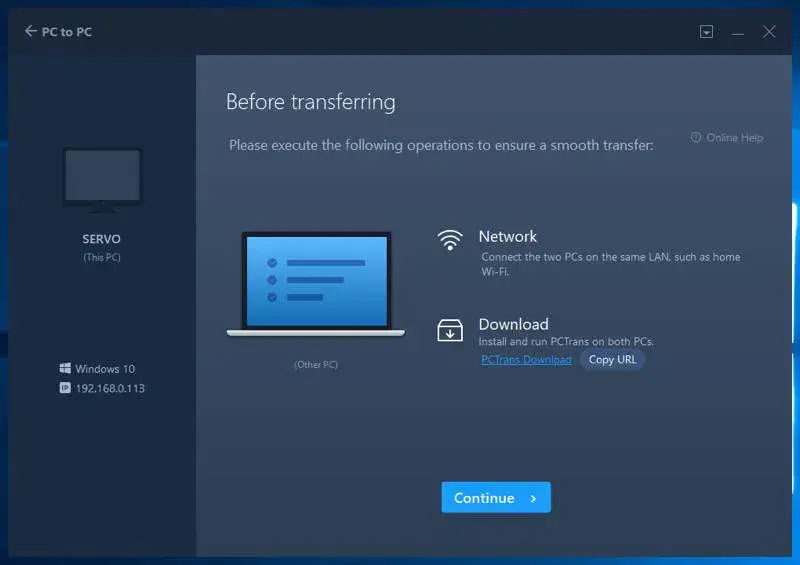
EaseUS Todo PCTrans is designed to transfer selected applications, files, folders, user accounts, and related settings between supported Windows computers.
It can establish a direct connection between two computers on the same network. It also supports image-based transfer when a direct PC-to-PC connection is not suitable. Its App Migration feature can move supported applications between drives on the same computer.
When Todo PCTrans Is the Better Choice
Choose Todo PCTrans when you need to:
- Move from an old Windows computer to a different PC
- Transfer selected applications instead of cloning everything
- Move user accounts, personal files, and related settings
- Relocate supported applications from the C drive to another drive
- Transfer through a network or migration image
- Access transferable data from an old Windows installation
Todo PCTrans can also assist with data and application recovery from an old drive removed from an unbootable computer. This requires the old storage drive to remain readable. It should not be treated as physical disk-repair or full data-recovery software.
Important Todo PCTrans Limitation
Todo PCTrans does not transfer the Windows operating system. It moves supported applications, files, accounts, and settings to a Windows installation that already exists on the destination computer.
Some applications may still require repair, reinstallation, sign-in, or license reactivation after transfer. Compatibility depends on the application, its drivers, its licensing system, and the Windows version on the new computer.
Which Todo PCTrans Edition Should You Choose?
Todo PCTrans Professional
EaseUS Todo PCTrans Professional is the main option for an individual, home office, or small business user completing a limited number of PC migrations.
It may suit buyers who need to move applications and personal data to a new computer or relocate supported applications between drives.
Todo PCTrans Technician
EaseUS Todo PCTrans Technician is intended for wider IT, business, or service-provider use.
It may suit:
- IT administrators preparing several computers
- Computer repair and support businesses
- Migration service providers
- Organizations moving applications and accounts across multiple systems
The exact activation limit, subscription period, company use, and customer-service rights depend on the current license terms. Confirm these requirements before ordering. EaseUS currently positions Technician for IT administrators, service providers, batch installation, business use, and client services.
EaseUS Disk Copy for Disk Cloning and Windows Migration

EaseUS Disk Copy is a disk-cloning tool. It can copy a complete HDD, SSD, or partition to another storage device.
When the source is a Windows system disk, the clone can include Windows, boot information, installed applications, settings, partitions, and personal files. Disk Copy also provides a dedicated operating-system migration mode and can create WinPE bootable media for cloning outside the normal Windows environment.
When Disk Copy Is the Better Choice
Choose Disk Copy when you need to:
- Replace an old HDD with an SSD
- Upgrade to a larger storage drive
- Move Windows to a new SSD, NVMe drive, or HDD
- Clone a complete disk or selected partition
- Keep the current Windows installation and installed applications
- Create bootable media for an offline cloning operation
- Prepare an immediate replacement for an existing system drive
Disk Copy supports common HDD and SSD types, including SATA and NVMe storage. The exact supported hardware, operating systems, file systems, and server use depend on the edition and current technical specifications.
Can Disk Copy Clone to a Smaller Drive?
Disk Copy may clone a larger source disk to a smaller destination disk when the destination has enough capacity for the used data.
Sector-by-sector cloning has stricter capacity requirements because it copies every sector. It should not be selected when the smaller destination cannot match the required source layout.
Important Disk Copy Warning
Cloning normally overwrites the selected destination disk. Back up any files already stored on the destination before starting.
Carefully confirm the source and destination drives. Choosing them in the wrong order can erase important data. Official EaseUS documentation warns that destination data is erased during the cloning process.
Which Disk Copy Edition Should You Choose?
Disk Copy Professional
EaseUS Disk Copy Professional is suitable for an individual user replacing or upgrading a drive on a Windows PC.
It may be the right option when:
- Moving Windows from an HDD to an SSD
- Replacing a small drive with a larger drive
- Cloning a personal Windows system
- Copying a disk or partition for personal use
Disk Copy Technician
EaseUS Disk Copy Technician is intended for professional, business, enterprise, or service-provider cloning work.
It may suit:
- IT departments upgrading several computers
- Computer repair businesses
- Managed service providers
- Technicians cloning customer drives
- Organizations requiring wider deployment or network-cloning features
Official EaseUS pages describe Technician as supporting multiple-system, business, and service-provider use. However, the exact device allowance and usage rights can vary by license offer or agreement. Confirm the current terms before purchase.
Which EaseUS Migration Tool Should You Choose?
Choose Todo PCTrans for a New Computer
Todo PCTrans is normally the better choice when the destination is a different Windows computer with Windows already installed.
It allows you to select applications, user accounts, files, and settings instead of copying the old computer’s complete disk structure.
Choose Disk Copy for an SSD or Hard-Drive Upgrade
Disk Copy is the better choice when the computer remains the same but its storage drive is being replaced.
A system-disk clone can move Windows, applications, partitions, settings, and files together to the new drive.
Choose Disk Copy for a Complete System Copy
Use Disk Copy when you want a complete copy of a disk or partition rather than selected data.
Remember that a clone also carries existing files, unnecessary applications, configuration problems, and other content from the source disk.
Choose Todo PCTrans for Selective Transfer
Use Todo PCTrans when you do not want to move the complete old system.
For example, you may want selected office applications, user folders, browser data, or account settings without copying the old Windows installation.
Other Migration, Backup, and Cloning Options
Todo PCTrans is designed for moving selected apps, files, accounts, and settings between Windows computers. Most other tools focus on disk cloning, Windows migration, backup, or partition management. They are closer alternatives to Disk Copy than Todo PCTrans.
- AOMEI Backupper Professional combines Windows backup and restore with disk, system, and partition cloning.
- AOMEI Partition Assistant Professional suits users who need to move Windows to an SSD, clone a system disk, move apps between local drives, or manage partitions.
- MiniTool ShadowMaker Pro supports Windows, file, disk, and partition backup. It also includes disk cloning and file synchronization.
- Paragon Hard Disk Manager for Business suits organizations that need Windows migration, partition management, scheduled backups, restore tools, and disaster recovery.
For scheduled backups, system images, and AOMEI license choices, see the AOMEI Backupper editions guide.
For offices, schools, labs, and IT teams preparing several computers, read Best Windows Deployment Software in Pakistan.
Before Starting a PC Migration
Follow these steps before transferring applications or cloning a drive:
- Back up important files to a separate storage location.
- Check that the destination PC or drive has enough available space.
- Confirm that applications support the destination Windows version.
- Save important software license keys and account details.
- Keep both computers connected to reliable power.
- Use a UPS when power interruptions are possible.
- Connect both computers to the same network for direct Todo PCTrans migration.
- Close unnecessary programs before starting.
- Confirm the source and destination disks before cloning.
- Do not erase or reuse the old drive until the migration has been tested.
Common Migration Problems
The Computers Cannot Connect
For Todo PCTrans network transfer, both computers should be on the same local network. Check network discovery, firewall permissions, the connection method, and the verification information shown by the software.
A wired network may provide a more stable connection when transferring a large amount of data.
A Transferred Application Does Not Open
Some applications depend on drivers, services, hardware identifiers, or system components that cannot be moved normally.
Repair or reinstall the affected application and sign in again where required. Also confirm that the application supports the destination Windows version.
Software Requests Reactivation
Migration software cannot override the publisher’s license rules.
Applications tied to the original hardware may request reactivation. Deactivate the license on the old computer first when the publisher provides that option.
The Cloned Drive Does Not Boot
Check that the clone included the required Windows and boot partitions. Also confirm the BIOS or UEFI boot order and the destination disk’s partition style.
Do not immediately erase the original drive. Keep it unchanged until the new drive starts correctly and important files have been checked.
The Destination Drive Is Too Small
Remove unnecessary files from the source or choose a larger destination drive.
A smaller destination may work only when its available capacity is sufficient for the data and the selected cloning method supports the required layout.
The Source Disk Has Errors
Cloning is not a guaranteed repair for a physically failing disk. Repeated read errors can interrupt the process.
Avoid unnecessary use of a failing drive. Important or irreplaceable data may require professional recovery before migration.
Buying PC Migration Software in Pakistan
BreTech is an authorized EaseUS reseller in Pakistan. Buyers can purchase genuine EaseUS licenses with PKR pricing, local payment options, invoice support, digital delivery, and activation guidance.
Before ordering, identify:
- Whether you are replacing a computer or only a drive
- Whether Windows must be transferred
- The number of computers involved
- Whether the computers belong to your company or customers
- Whether Windows Server support is required
- Whether the work is personal, internal business, or technician use
- The required license period
Not sure which product or edition fits your needs? Contact BreTech for license guidance, or explore all System Migration & Deployment tools.
Final Recommendation
EaseUS Todo PCTrans and EaseUS Disk Copy are not direct replacements for each other.
Choose Todo PCTrans when moving selected applications, files, accounts, and settings from an old Windows computer to another PC.
Choose Disk Copy when replacing a storage drive, cloning an entire disk, or moving Windows to a new HDD, SSD, or NVMe drive.
For business or technician work, confirm the current license scope before ordering. The correct edition depends on the number of computers, ownership of those computers, operating systems, and whether services will be provided to customers.
Further Reading
- Full Guide to Clone NVMe SSD to NVMe SSD
- File Backup vs System Image Backup
- AOMEI Partition Assistant vs AOMEI Backupper
FAQs
Q: Is Todo PCTrans the same as disk-cloning software?
A: No. Todo PCTrans moves selected applications, files, accounts, and settings. Disk-cloning software copies an entire disk or partition.
Q: Which tool should I use when moving to a new PC?
A: Todo PCTrans is usually better when moving selected applications and data to another computer that already has Windows installed.
Q: Can Todo PCTrans transfer Windows to another drive?
A: No. Todo PCTrans transfers applications, accounts, files, and settings. Use Disk Copy when the Windows operating system must also be moved.
Q: Can Disk Copy transfer only one application?
A: No. Disk Copy works at the disk, system, or partition level. Use Todo PCTrans when you need to select individual supported applications.
Q: Can Disk Copy clone a larger drive to a smaller SSD?
A: It may work when the smaller SSD has enough capacity for the used data and sector-by-sector cloning is not required.
Q: Will transferred software remain activated?
A: Not always. Some licenses are linked to the original hardware and may require deactivation, license transfer, sign-in, or reactivation.
Q: Which edition is suitable for IT technicians?
A: Technician editions are intended for wider IT or service work. Confirm device limits, customer use, server support, and license duration before ordering.